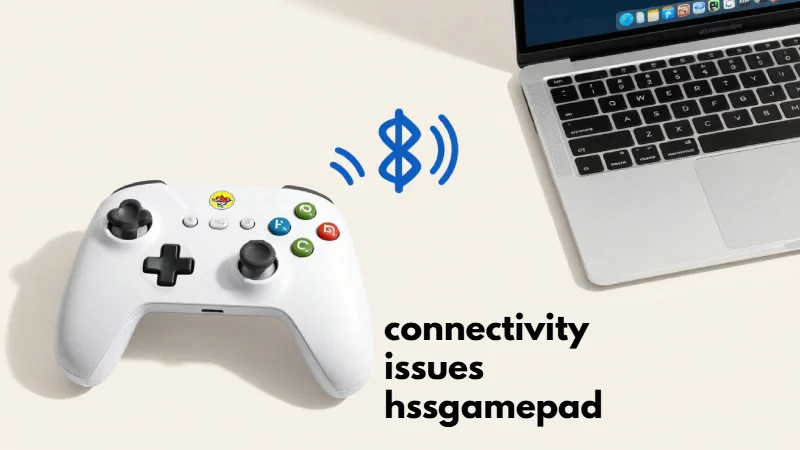
If you’ve ever picked up your HSSGamepad for an intense gaming session only to find it unresponsive, you’re not alone. Connectivity problems can turn a thrilling gaming night into a frustrating experience. While the HSSGamepad is widely praised for its ergonomic design and responsive buttons, like all wireless controllers, it’s not immune to occasional pairing glitches or signal interference. Let’s dive into why these issues happen and how you can tackle them effectively.
Understanding Why Your HSSGamepad Loses Connection
The first step to resolving any connectivity problem is understanding the cause. HSSGamepads can experience interruptions due to several factors:
-
Bluetooth interference: Other devices in your room—smartphones, routers, or even microwaves—can disrupt the wireless signal.
-
Battery issues: Low power can prevent a stable connection. Even if the lights are on, the internal charge might not be sufficient for optimal performance.
-
Software mismatches: Outdated drivers or firmware on your console or PC can prevent smooth pairing.
-
Hardware defects: While rare, manufacturing inconsistencies can occasionally lead to persistent connectivity glitches.
Personally, I once spent an entire evening troubleshooting a connection drop only to realize it was my Wi-Fi router causing interference—lesson learned: environmental factors matter more than you think.
Quick Fixes That Usually Work
Fortunately, most connectivity hiccups can be resolved without professional help. Here’s a structured approach:
-
Restart Your Devices
Turn off your console or PC and your HSSGamepad. Wait 10–15 seconds before reconnecting. This simple reset can often clear temporary glitches. -
Check Batteries or Charge Levels
Even if your controller seems powered, a low charge can make the connection unstable. Fully recharge or swap batteries if needed. -
Reduce Signal Interference
Move away from other wireless devices. If possible, turn off nearby electronics that could conflict with Bluetooth signals. -
Update Firmware
Check your console or PC software for updates. Many connectivity bugs are addressed in firmware patches. -
Re-Pair the Controller
Forget the device on your system and pair it again. Sometimes the original connection gets corrupted, and a fresh pairing solves the problem. -
Test on Another Device
If your controller still fails to connect, try pairing it with a different console or PC. This helps determine whether the issue is with the device or the HSSGamepad itself.
Real-Life Situation: Maintaining Controller Stability
Imagine you’re in a competitive online match, and halfway through, your controller freezes. This isn’t just frustrating; it can cost you the game. By keeping a spare charging cable and performing a quick firmware check before intense sessions, you can avoid losing your edge due to connectivity interruptions. Many seasoned gamers actually set aside a short pre-game troubleshooting routine to ensure everything runs smoothly.
Comparing Common Issues and Solutions
Here’s a quick comparison of typical connectivity problems and practical fixes:
| Issue | Likely Cause | Quick Fix |
|---|---|---|
| Sporadic disconnects | Signal interference | Move devices apart, minimize obstructions |
| Controller not recognized | Firmware mismatch | Update console/PC and controller firmware |
| Short connection range | Weak battery or low signal | Charge fully, bring closer to device |
| Complete unresponsiveness | Hardware fault or pairing error | Re-pair device or test on another system |
This table is handy because it shows you at a glance which steps are most effective depending on the situation.
Tips for Preventing Future Connection Problems
-
Keep Devices Updated: Regularly check for software and firmware updates.
-
Maintain Clear Line of Sight: Bluetooth signals work best without walls or metal objects obstructing them.
-
Store Controller Properly: Avoid leaving it near high-interference electronics.
-
Use Original Cables and Accessories: Generic charging cables sometimes cause inconsistent performance.
Unique Advantage of HSSGamepad
What sets the HSSGamepad apart is its combination of reliability and customization. Beyond basic troubleshooting, the controller allows for personalized button mapping and sensitivity adjustments, ensuring that even when connectivity issues arise, your gaming experience doesn’t lose its competitive edge. This level of control is rare in mid-range controllers, making the HSSGamepad both versatile and user-friendly, even for players who experience occasional wireless hiccups.
Read More: Optimize Your Site with a Sitemap Generator Spellmistake
Conclusion
Connectivity issues with the HSSGamepad, though frustrating, are usually manageable. From interference and low battery power to outdated firmware, most problems have straightforward solutions. By understanding the causes, performing regular maintenance, and taking proactive steps, you can ensure smooth gameplay. Remember, preparation before an intense gaming session can save both your nerves and your rank.
FAQs
Q1: Why does my HSSGamepad disconnect randomly even when fully charged?
Random drops are often due to signal interference from other wireless devices. Keep your controller away from potential disruptors and maintain a clear line of sight with your console.
Q2: Can a software update fix connectivity problems?
Yes. Many HSSGamepad firmware and console updates address known pairing and stability issues. Regularly updating both devices is recommended.
Q3: Is there a way to test if the problem is the controller or the console?
Try connecting your controller to another device. If it works there, the original console or PC may be the source of the issue.
Q4: How do I prevent future connection drops?
Store the controller properly, keep devices updated, use original charging cables, and minimize wireless interference in your gaming area.
Q5: What should I do if none of these solutions work?
If troubleshooting fails, it might be a hardware defect. Contact the manufacturer or seek professional repair to avoid further frustration.